See the work as it is done, not as it is described
The employee shares their screen; the AI interviewer watches and asks about what it sees. Copy-pasting between two windows and the “temporary” spreadsheet become findings, backed by the screenshot.
- Full screen offered by default, so installed software is visible
- Sensitive data blurred before anything reaches the vision model
- Sharing can be stopped, limited to one window, or masked at any time
The starting point
Interviews capture the official process
In a meeting room, people describe the procedure as it is supposed to work. Re-keying the order number from the CRM into the ERP, the manual check in a shared spreadsheet, the improvised export every Monday: you only see these by watching someone work. Watching fifteen people work takes days.
“Show me,” at the right moment
Your guide lists the expected demonstrations, such as “entering an order” or “bank reconciliation.” The AI interviewer asks for them when the topic comes up, or as soon as the employee describes a manual step. Then it asks about what it sees: “are you copying that number from the other window?”
- Full screen is offered by default, because installed applications matter as much as browser tabs.
- The AI interviewer says what it sees before drawing a conclusion, so the employee can correct it.
- A permanent indicator shows whether the screen is currently shared.
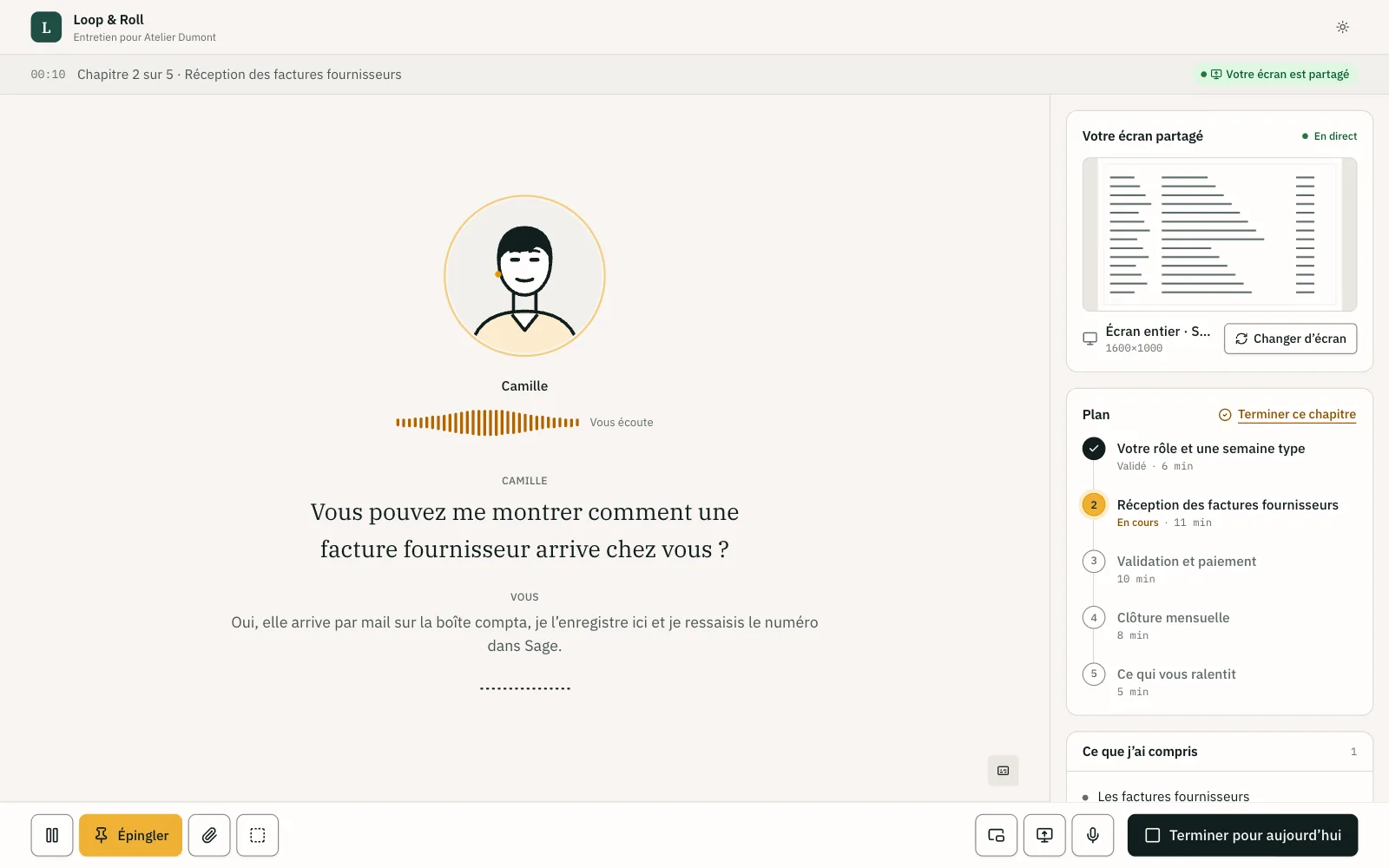
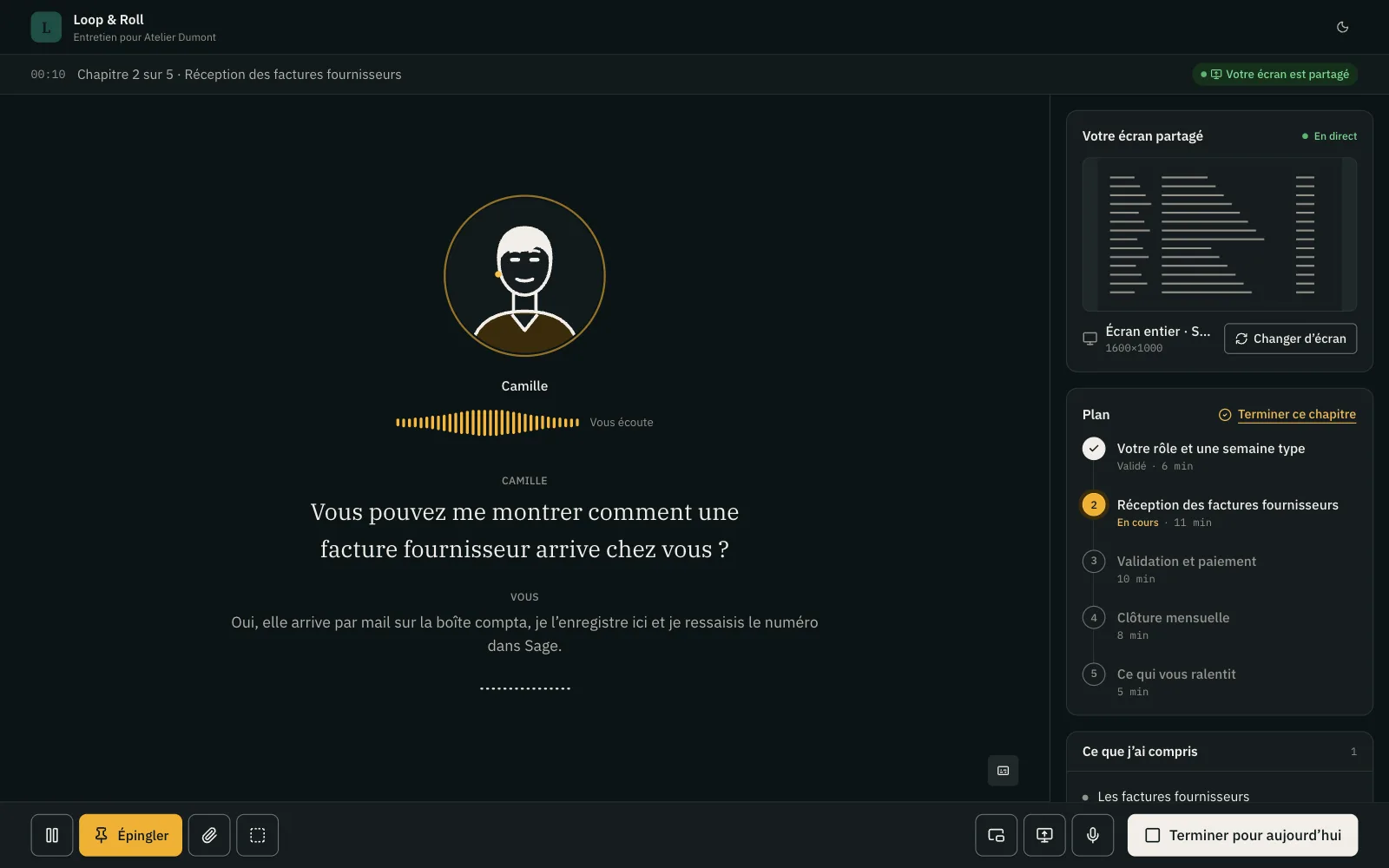
Screen reading you can verify
The product doesn’t stream continuous video to the AI. An image is sent when the screen changes noticeably, up to a frequency cap, plus one for each pin and each request from the AI interviewer. By default, a separate vision model describes each image: application, screen, current action, and visible elements.
- Every description is stored, so you can check afterward what the AI read on screen.
- A description can back a finding as evidence, next to the transcript excerpt.
- A dedicated vision model reduces the risk of the conversation model inventing what is on screen.
Pins and files: the employee points to what matters
A button, a keyboard shortcut, or a spoken phrase (“keep that”) creates a pin: a sharp full-resolution capture, a marker in the recording, and a spoken or written comment. The AI interviewer can also offer to pin a useful screen. Employees can upload files during the session: exports, procedures, spreadsheets, PDFs.
- A pin then serves as evidence in the analysis and, if the consultant selects it, in the deliverable.
- The AI interviewer acknowledges a file and may ask about it; its content is analyzed after the session.
- Every passage used from a file becomes citable evidence, with the file and page.
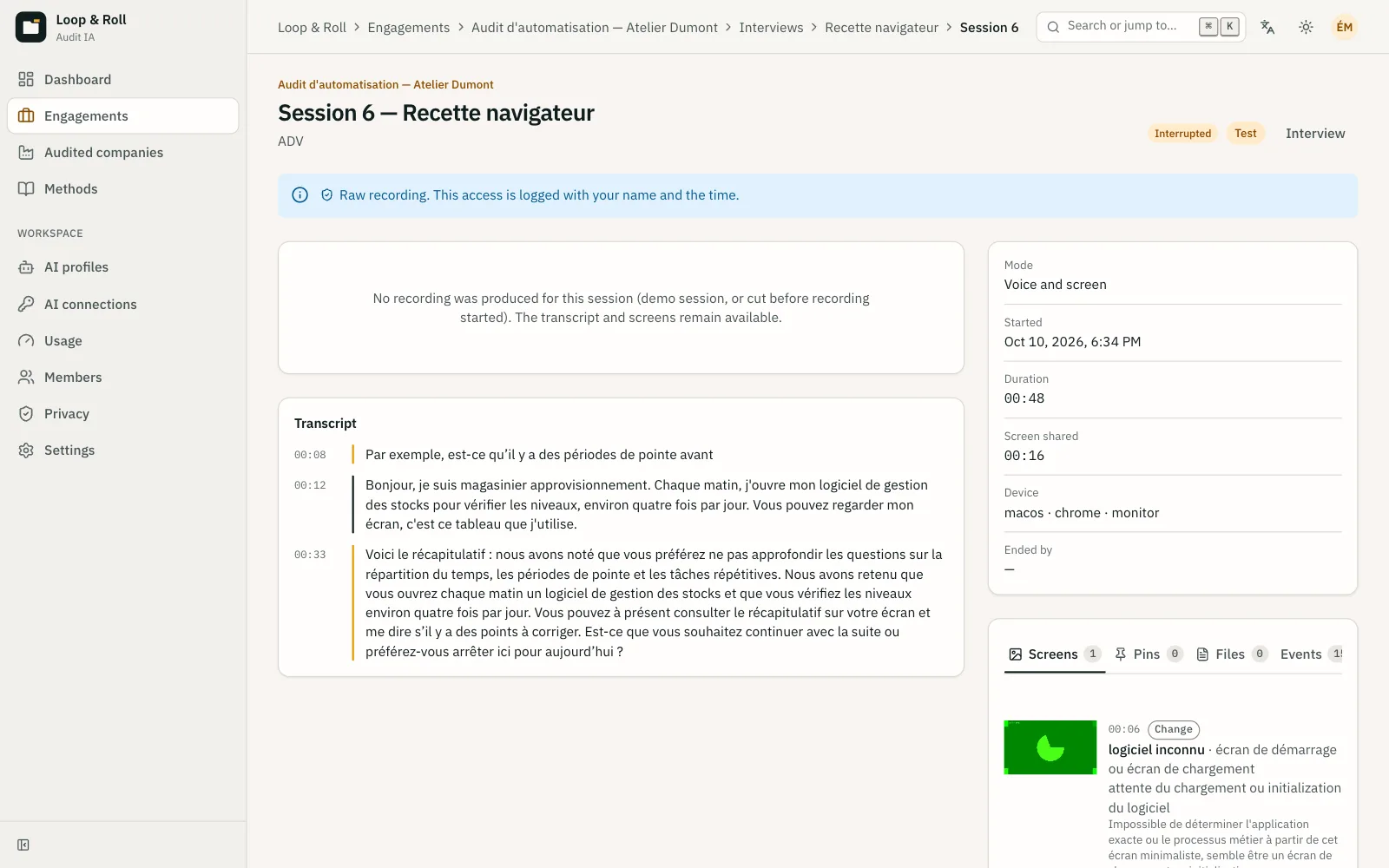
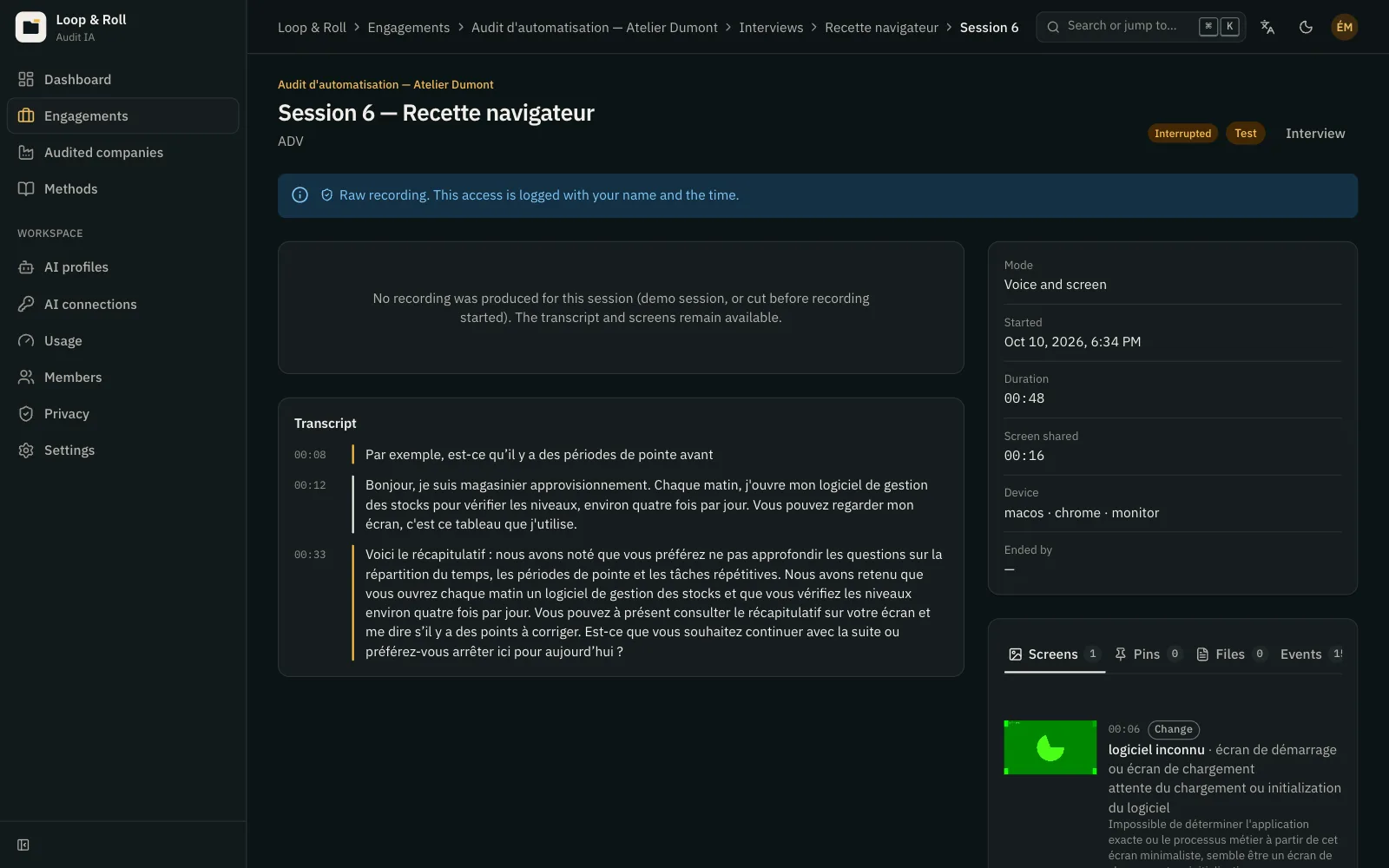
Participants control what they show
Before anything goes to the vision model, the image is read on our servers to find visible sensitive data (IBANs, card numbers, social security numbers, third-party emails and phone numbers, password fields) and blur it. Redaction is on by default and its categories are configurable per engagement. No detection is perfect, and the welcome screen says so.
- The employee can stop sharing, share a single window, or switch screens mid-session.
- A “hide an area” button blurs a rectangle they draw, for the rest of the session.
- A reminder suggests turning on Do Not Disturb so personal notifications stay off screen.
- Nothing is captured outside a session, and no agent is installed on the computer.
In practice
- Shared surface
- Full screen offered by default; the participant can pick a window, switch screens, or stop sharing.
- Sampling
- One image when the screen changes noticeably, up to a frequency cap, plus one for each pin and each request from the AI interviewer.
- Vision model
- Separate from the conversation model by default, chosen by the firm in its AI profiles; every screen description is kept.
- Blurring
- On-server text recognition, rule-based detection, and blurring before sending to the vision model; the video is blurred after the session, before anyone can view it.
- Pin
- A sharp full-resolution capture, a timestamp in the recording, and a spoken or written comment.
- Devices
- Screen sharing on computers; voice-only mode with screenshot uploads on phones and tablets.
Frequently asked questions
Does the AI watch the screen continuously?
No. The product sends an image to the vision model when the screen changes noticeably, up to a frequency cap, and for each pin or request from the AI interviewer. There is no continuous stream and no capture outside a session.
What happens if an IBAN or a password appears on screen?
Before anything is sent to the vision model, the image text is read on our servers and detected sensitive data is blurred. The recorded video is blurred after the session, before anyone can watch it. No detection is perfect, and participants can also hide an area themselves.
Why use a separate vision model?
Models that listen and speak at the same time can misdescribe a screen. A dedicated model produces a stored description of each image, which the consultant can check and use as evidence. Firms can change this setting in their AI profiles.
Can an employee decline to show certain screens?
Yes. They can stop sharing at any time, share only one window, hide an area, or pause the interview. They can also delete a passage of the recording afterward, and that passage is removed from the analysis.
Does screen sharing work on a managed corporate computer?
Usually, from a recent browser. On a Mac, the browser needs permission to record the screen, which a device management policy may block; a guide explains the steps and the setup check detects the issue before the interview.
Related features
- Voice interviews Each employee talks to the AI interviewer when it suits them, in their browser, across several sittings.
- Privacy and GDPR Processes, never people: redaction, limited retention, and works council and DPIA kits included.
- Process map Processes rebuilt step by step, with actors, tools, volumes, and pain points, each one sourced.
Use cases where it matters
- Digital transformation The baseline before the program: the tools people actually use, not just the ones on the IT roadmap.
- ERP / CRM integrators Requirements gathering grounded in how current systems are really used, with BPMN export.
- Automation agencies Spot repetitive tasks, estimate their volumes with sources, and back every proposal with facts.
- IT and internal teams The same tool, for internal audits: real application usage, pain points, and shadow applications.
- Order to cash Audit the sales chain from quote request to overdue invoice follow-up, one team at a time.
- Procure to pay Audit purchasing from requisition to payment, and spot the approvals that are missing.
See a complete audit in thirty minutes.
A voice interview with screen sharing, the process map it produces, the deliverable the sponsor reads: on a demo engagement, with your questions.